Controls for Rec Room: A New Semester
Screen mode and VR bindings: watch menu, move, interact, parties, and Creator Pen—remap-friendly during Early Access.
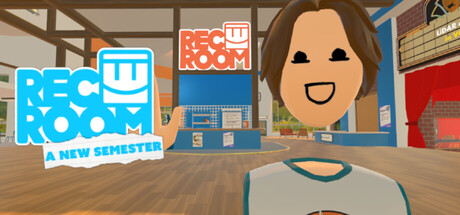
Controls in Rec Room: A New Semester (RR:ANS) cover two play styles on the same Steam build: PC screen mode and tracked VR controllers. Thunderstorm Games ships a free-to-play social sandbox (Steam app 4877420, Early Access November 24, 2026) with friends, parties, messaging, invites, profiles, Creator Pen building, story mode, Workshop, and RROs. Bindings can be customized—official notes call out remappable keys and UI tweaks—so treat the tables below as the default mental model, then confirm in-game after each patch.
If you have not installed yet, finish Getting Started first. Headset owners should pair this page with VR Setup. Builders jump to Creator Pen after they can open the tool reliably.
Core ideas that stay the same on every device
- Watch menu: your always-available hub for friends, rooms, settings, and many social actions. In VR you typically raise a wrist and look at the watch; in screen mode you toggle it with a key (commonly Tab-class binding).
- Interact: grab, use, talk to objects, and confirm UI. Screen mode often maps interact to a keyboard key plus mouse click; VR uses triggers and grip.
- Movement: walk/teleport options, sprint, jump, and (where permitted) fly—especially while holding Creator Pen in editable spaces.
- Social gestures: fist-bump style party prompts, point-to-profile, waves, and mute/report paths matter as much as raw locomotion in a social sandbox.
- Creator Pen access: pull the pen from backpack/tool slots, open its palette/menu, then place and edit. Exact slot keys differ by mode.
RR:ANS is not a Rec Room Inc. product; control labels may echo familiar social-VR patterns without matching that title’s exact patches.
PC screen mode basics
Screen mode is ideal for desk play, streaming, or when a headset is charging. Expect keyboard + mouse defaults in this neighborhood (confirm in Settings → Controls after launch):
| Action | Typical screen binding |
|---|---|
| Move | WASD |
| Look | Mouse |
| Jump / crouch | Space / Ctrl (or equivalent) |
| Sprint toggle | Shift or face-button style bind |
| Watch menu | Tab |
| Back / cancel | Esc |
| Interact / confirm | E + left click |
| Drop held item | Q |
| Backpack / tool slots | Number row (1–4 class) |
| Mic / push-to-talk | Dedicated toggle (often T-class) |
| Emotes | Hold a radial key (often C-class) |
Creator Pen in screen mode: select the pen from a backpack slot, open its menu with the menu/palette bind, then use mouse for place/rotate. Advanced creator camera moves (orbit/zoom while building) usually combine Alt + mouse wheel or a documented modifier—check the in-game help overlay the first time you build.
Parties and profiles on screen: point or use the interact prompt on another avatar to open their profile for friend, invite, cheer, mute, or report. Practice once in Rec Center before public PvP lobbies.
VR controller basics
Tracked controllers are the native feel for RR:ANS. Official Steam news covers Steam Frame (standalone planned, eye-tracking option), Meta Quest PCVR only, HTC Vive, Valve Index, and PSVR1/2 via PCVR. Bindings vary by hardware, but the verbs stay stable:
Watch menu (VR)
Raise your wrist so the watch faces you, or press the documented menu button if the wrist glance is disabled. From here you join rooms, manage friends, adjust settings, and leave experiences. You can often “detach” the menu so one hand keeps interacting with the world.
Movement (VR)
- Teleport vs smooth locomotion: pick comfort settings early; motion-sensitive players should prefer teleport + vignette options if offered.
- Jump / fly: many social sandboxes use double-jump to toggle fly in rooms that allow it. Creator spaces are more likely to allow fly while the pen is equipped.
- Sprint: usually a stick press or face button on the locomotion hand.
Interact and grip
- Trigger: primary use / shoot / confirm.
- Grip: hold objects, hold Creator Pen, or combine for scale/orbit gestures while building.
- Face buttons: jump, UI shortcuts, or tool swaps depending on the binding profile.
Social VR gestures
- Party up: closed-fist bump with another player when the game supports watch-band color sync.
- Point: open profile or select UI in space.
- Drop sticky tools: if a pen or prop sticks to your hand, use the documented point/drop gesture rather than spamming grip.
Exact Quest Touch, Index knuckle, Vive wand, and PSVR Move charts will ship in-game and may shift during Early Access—rebind in SteamVR or the title’s control screen when a patch remaps defaults.
Creator Pen access (both modes)
- Open backpack / tool wheel.
- Equip Creator Pen.
- Open the pen palette/settings.
- Place a test cube, undo once, save or discard.
- Exit pen mode before joining competitive rooms so you do not block inputs.
Deep building, Workshop, inventing, and sharing workflows are documented in Creator Pen. December SDK imports for rooms/avatars will add desktop-side steps; controls for in-world editing still start with the pen.
Comfort, accessibility, and remaps
Official messaging highlights customizable keybinds and UI declutter options. Recommendations:
- Remap watch menu to a key you never miss.
- Lower turn speed or switch to snap turn in VR if you feel queasy.
- Bind push-to-talk if you play in shared spaces.
- Save a “builder” preset with pen, fly, and undo nearby if the game allows control profiles.
During the ~two-year Early Access window, expect binding tweaks. After every major patch, open Settings once and skim Updates.
Quick troubleshooting
| Symptom | Try this |
|---|---|
| Watch will not open | Confirm mode (VR wrist vs screen Tab); check remaps; restart Steam overlay |
| Cannot grab pen | Verify tool slot bind; ensure room allows creation tools |
| Quest inputs dead | Confirm PCVR link/Air Link + SteamVR; RR:ANS is not Quest Store standalone |
| PSVR odd tracking | PSVR2 needs proper PC adapter/software; PSVR1 support is limited via third-party tools |
| Friend invite fails | Check party status, privacy settings, and that both players finished onboarding |
Practice route (15 minutes)
- Rec Center: open/close watch ten times.
- Move to a quiet corner: walk, sprint, jump.
- Interact with a door/portal and a UI panel.
- Friend a known account; send one invite.
- Equip Creator Pen; place and delete one object.
- If on VR, toggle teleport vs smooth once and pick a comfort default.
Related guides
- Getting Started — install, Rec Center, first session
- VR Setup — headset matrix and PCVR notes
- Creator Pen — building after you can equip the tool
- Story Mode — when menus and episodes change around you
- Guides Hub — full index
Master the watch, interact, and pen equip loop, then everything else in RR:ANS—parties, rooms, story, and Workshop—becomes much faster to learn.
Frequently Asked Questions
Quick answers for Rec Room: A New Semester players.
How do I open the watch menu in Rec Room: A New Semester?
In VR, raise and look at your wrist (or use the menu button). In screen mode, use the watch toggle key (commonly Tab). Remap it in settings if needed.
Are PC screen mode and VR controls the same?
Verbs match—watch, move, interact, Creator Pen—but bindings differ. Screen mode uses keyboard/mouse; VR uses tracked controllers per headset profile.
How do I equip the Creator Pen?
Open your backpack or tool slots, select Creator Pen, then open its palette/menu. See the Creator Pen guide for building and Workshop workflows.
Can I remap keys and declutter the UI?
Yes. Official notes highlight customizable keybinds and UI options. Re-check bindings after Early Access patches.
Why do my Meta Quest controllers not work without a PC?
RR:ANS supports Quest through PCVR only—it is not a Quest Store standalone game. Connect via PC Link/Air Link and SteamVR.